
You're sitting in an older car with a newer Android phone, trying to get navigation onto the dashboard. The phone charges when you plug it in, but nothing appears on the car's screen. Or Bluetooth calls work, yet Android Auto won't launch.
Those symptoms don't automatically mean you need another cable. Android Auto on phone depends on the whole connection, including the handset, receiver, permissions, and software. Check those in order, then prove the setup works before you drive.
Table of Contents
- What Android Auto on Your Phone Does
- Check Compatibility Before You Plug In
- How to Set Up Android Auto on Your Phone
- Use Android Auto Safely on Every Drive
- Fix Connection and Post-Update Failures
- Run the Acceptance Test Before Your First Drive
What Android Auto on Your Phone Does
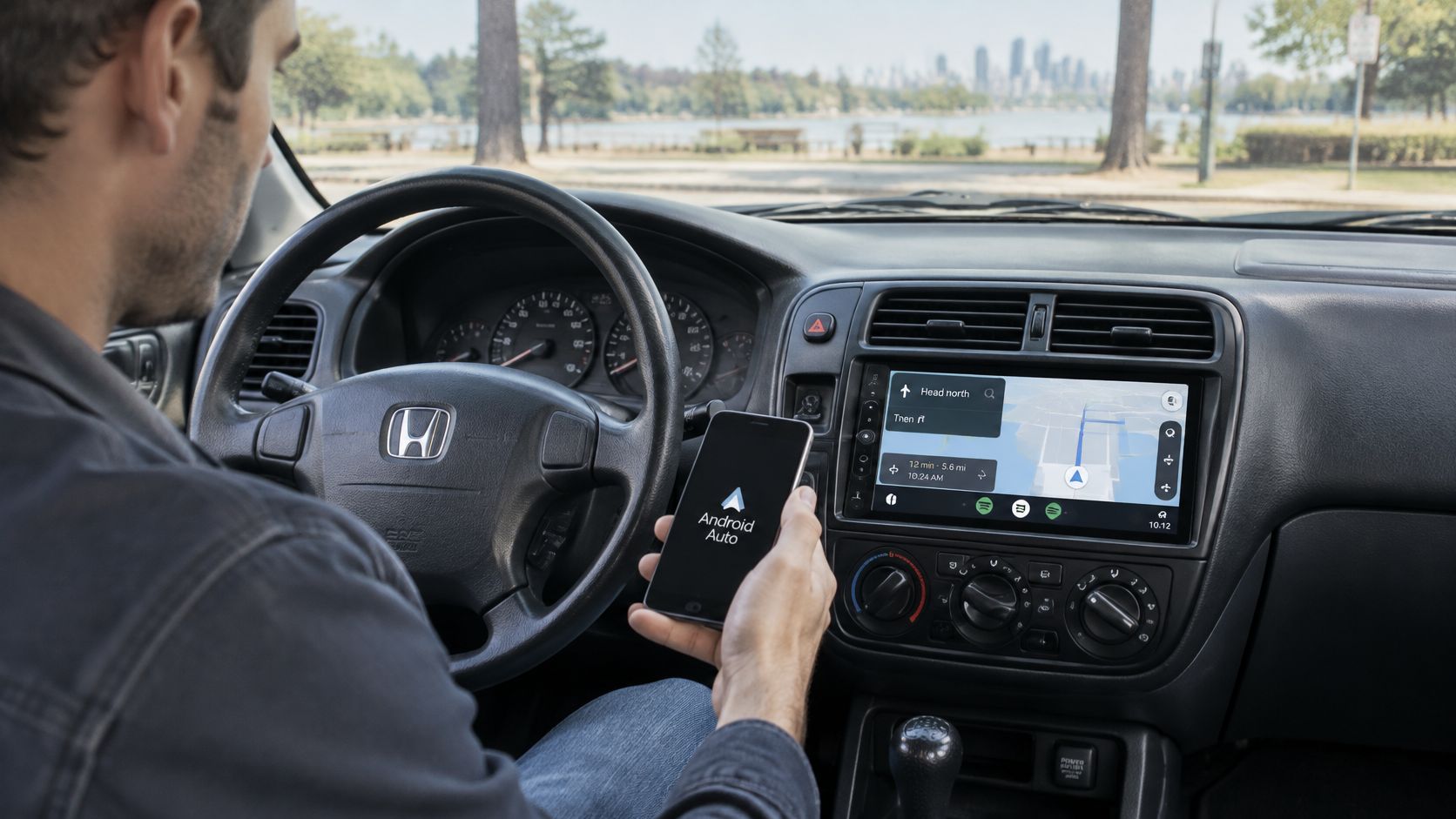
Android Auto uses your phone to provide a driving-focused interface on a compatible vehicle display. It brings supported navigation, communication, and media apps to the dashboard, with voice controls and larger on-screen controls instead of an ordinary phone layout.
The distinction between the phone and the display matters. Your phone supplies the apps and connection, but a compatible receiver supplies the dashboard interface. A touchscreen that supports Bluetooth music isn't necessarily an Android Auto receiver.
Choose the Right Display Route
There are two current connection routes and a historical option that still causes confusion:
- Wired projection: Connect the phone to a compatible car display through its data-capable USB port.
- Wireless projection: Connect to a receiver that explicitly supports wireless Android Auto.
- Legacy phone-screen mode: Google introduced a dedicated phone interface in November 2016, with larger touch targets and a reduced layout, but later discontinued that standalone experience, as 9to5Google explains.
Don't follow an old tutorial expecting today's Android Auto to become a standalone dashboard on your phone. If your car lacks a compatible display, you'll need a suitable receiver for projection, or use ordinary navigation on a securely mounted phone instead.
If you're comparing phones across a household, our CarPlay versus Android Auto guide helps separate the two systems. For your immediate setup, identify the receiver's exact model and whether it supports wired projection, wireless projection, or neither.
Check Compatibility Before You Plug In
Requirements by connection type
The current phone and connection requirements below follow Google's Android Auto setup guidance, including Android 10 or later for integrated Android Auto and Android 11 or later with 5 GHz Wi-Fi capability for the general wireless setup described here.
| Connection | Phone requirement | Cable or Wi-Fi | Car or receiver and data |
|---|---|---|---|
| Wired USB | Android 10 or later, built in without a separate app | Certified USB data cable | Compatible car display and active mobile data |
| Wireless | Android 11 or later | 5 GHz Wi-Fi capability | Car or receiver explicitly supporting wireless Android Auto and active data |
| Android 9 or earlier | Legacy separate-app setup, not a current installation recommendation | Certified USB data cable | Historical compatibility only, verify current support before attempting |
Treat the legacy row as a warning, not an instruction to download an old installer. Don't buy an older handset on the assumption that archived Play Store instructions still describe a supported setup.
Read the Receiver Specification First
Look for Android Auto, not smartphone connectivity, screen mirroring, or Bluetooth. Then check whether the specification explicitly says wireless. A wireless adapter isn't a universal upgrade for a screen that never supported Android Auto in the first place.
Phone software alone doesn't establish wireless compatibility. The handset's radio, receiver implementation, firmware, and regional requirements also matter. Google's guidance identifies additional European Union wireless restrictions and lists Pixel 3 and newer as compliant Google phones for the relevant 5 GHz requirements.
For a practical receiver checklist, use our Android Auto device guide. Match the exact receiver model, not just the vehicle's badge, because replacement head units and factory options can differ.
Buying rule: Confirm display support before purchasing a cable, adapter, or replacement phone.
If you decide to upgrade the handset, establish that the replacement connects before wiping the old device. Myhalo's guide to prepare your old phone for trade-in is useful for handling that separate handover safely.
Start with wired projection when wireless eligibility is uncertain. If the receiver supports both connection methods, establish a working wired baseline before introducing wireless pairing.
How to Set Up Android Auto on Your Phone
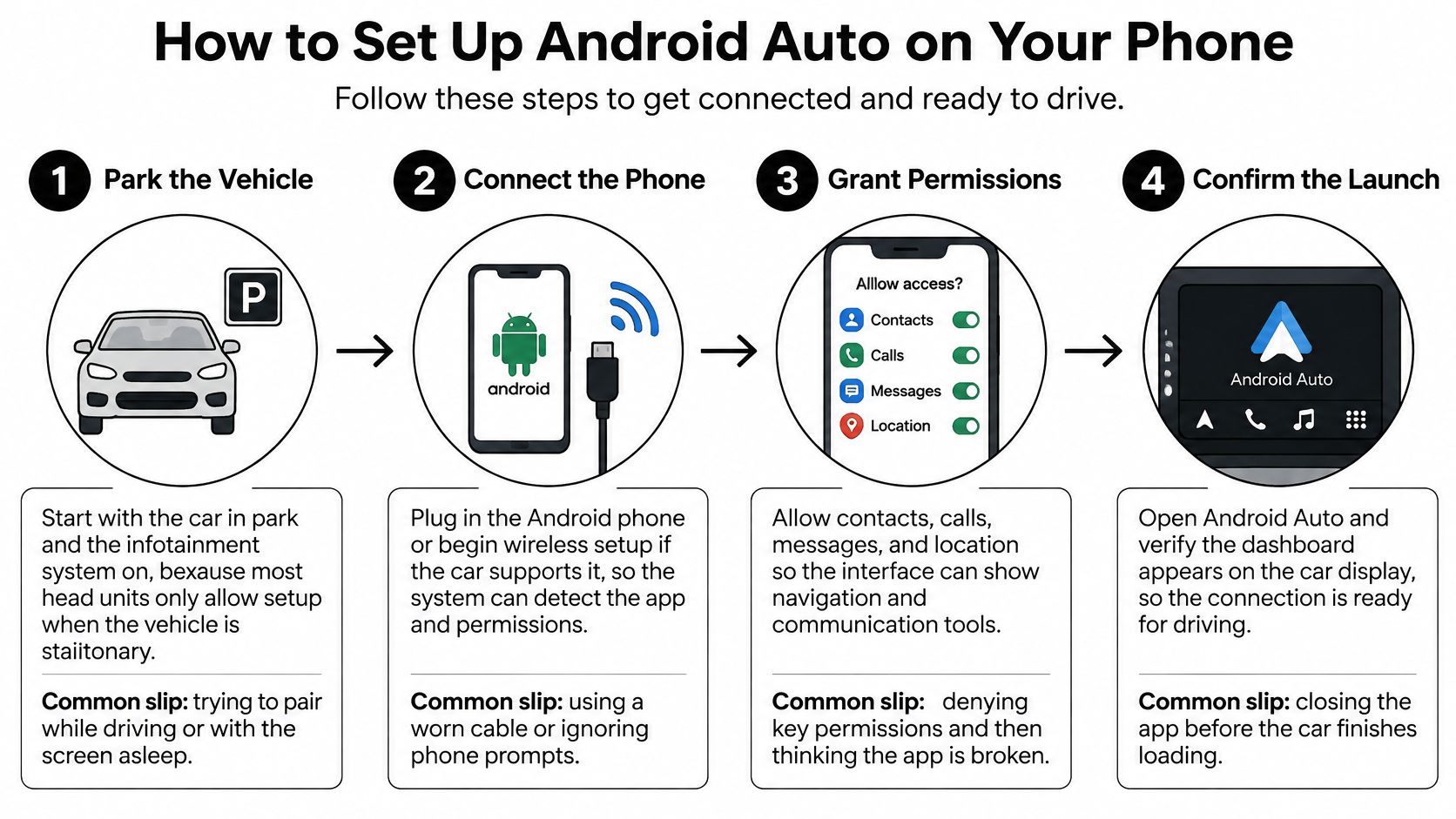
Complete the initial setup while parked, with access to both the phone and receiver. Keep the phone's screen on during pairing so permission prompts don't sit unnoticed behind the lock screen.
Use this visual sequence as a setup checklist.
Establish the Connection
Park and switch on the infotainment system. Open the receiver's phone connection or Android Auto menu rather than leaving it on a sleeping screen. Trying to complete a new pairing while moving can leave setup unavailable or distract you from driving.
Enable Bluetooth, Wi-Fi, and Location Services on the phone. For wireless setup, leave them enabled while the receiver discovers and configures the handset. A common mistake is allowing Bluetooth but switching Wi-Fi off because mobile data already works.
For wired projection, connect directly to the correct USB port. Use a sound data cable without a hub or extension, and choose the port identified for phone projection in the receiver's manual. Charging alone doesn't prove that the port or cable carries data.
For wireless projection, begin with Bluetooth pairing. Select the vehicle on the phone, check that the displayed pairing codes agree, and follow the Android Auto prompts. Bluetooth starts the pairing process, while the projection session uses Wi-Fi, so ordinary Bluetooth audio isn't proof that setup has finished.
Review and accept the relevant permissions. Allow the access needed for the features you intend to use, such as contacts, calls, messages, location, and microphone. If you decline access, note which permission you refused rather than assuming a missing feature means the receiver is defective.
Save the phone as an approved device. If the receiver offers a preferred-phone setting, choose the handset you want it to connect to automatically. Leaving several household phones with equal priority can make the receiver select a different device from the one you expected.
Confirm Projection Has Launched
A successful initial launch puts the Android Auto interface and app launcher on the vehicle display. The phone doesn't need to show an identical dashboard, and opening an ordinary navigation app on the handset doesn't prove projection is running.
If your setup includes an aftermarket accessory, check our CarPlay and Android Auto adapter guide before adding another device to the connection. Establish the receiver's native behavior first so an adapter doesn't introduce another unknown.
The video offers another view of the setup process.
Leave functional testing until pairing has finished and the dashboard has loaded. Don't repeatedly unplug the phone while the receiver is still processing its first connection.
Use Android Auto Safely on Every Drive
Set your destination, inspect the route, and choose audio before releasing the parking brake. If the destination has several entrances, select the correct arrival point while stationary rather than correcting it at a busy junction.
A simpler screen still requires attention. Android Auto can reduce the need to handle the phone, but it doesn't make a complicated interaction suitable for driving.
Prepare the Cabin Before Moving
- Position the phone securely. Keep a mounted phone out of your road sightline and away from vehicle controls. If you're using dashboard projection, place the handset somewhere stable rather than balancing it beside the gear selector.
- Route the cable away from controls. Leave enough slack that ordinary movement won't pull the connector loose, but secure the excess away from pedals, steering, and your hands.
- Choose the route and audio beforehand. Start the intended playlist rather than browsing albums while approaching an intersection. Check the destination itself, not just whether a map appears.
A-1 Driving School's advice to stay focused while driving is a useful reminder that distraction includes what occupies your attention, not only what occupies your hands. Voice control should simplify a task, not turn the drive into an extended troubleshooting conversation.
Keep Moving Tasks Short
Use voice for a straightforward call, a short message, or a navigation request. If the assistant repeatedly misunderstands a contact, stop trying to correct it while negotiating traffic.
For example, asking for directions to a saved destination is different from comparing several unfamiliar businesses and their entrances. Let a passenger handle that comparison, or pull over somewhere safe before making the choice.
If a task needs reading, comparison, or repeated correction, park before completing it.
Use the vehicle interface's large controls rather than reaching for ordinary phone apps. If you're navigating directly on a mounted handset because there's no compatible receiver, don't mistake that arrangement for the discontinued Android Auto phone-screen mode.
Check the rules that apply where you drive before enabling messaging interactions. Don't assume having messages read aloud makes every response method permissible.
Finish preparation with a short stationary routine: secure the handset, settle the route, and confirm that your intended voice control responds. If it doesn't, resolve it before moving or drive without that feature.
Fix Connection and Post-Update Failures
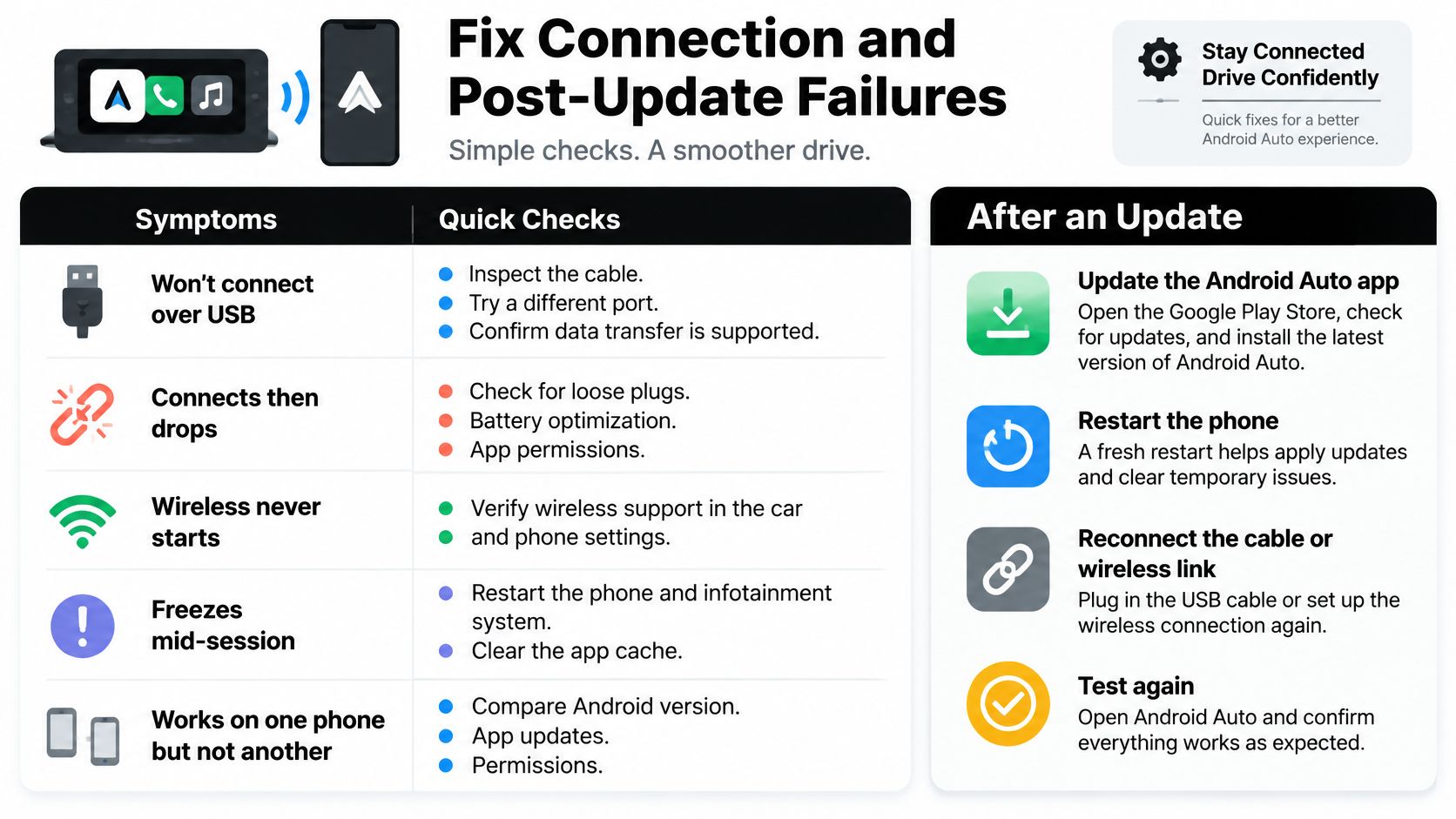
Connection symptoms, likely causes and first fixes
| Symptom | Likely cause | First fix |
|---|---|---|
| Won't connect over USB | Charge-only or damaged cable | Swap in a certified USB data cable |
| Connects, then drops | Stale Bluetooth pairing or an unstable physical connection | Remove the device and pair it again, then inspect plug fit |
| Wireless never starts | Missing phone or receiver wireless support | Confirm wireless eligibility on both devices |
| Freezes mid-session | Missing permission or pending update | Check permissions, then install pending updates |
| Works on one phone, not another | Handset-side compatibility, settings, or software fault | Compare with a second compatible phone |
These are starting hypotheses, not diagnoses. A dropout doesn't prove Bluetooth is responsible, and a frozen display doesn't automatically justify replacing the head unit.
In a self-selected Android Authority reader poll, nearly 70% of respondents reported regularly experiencing Android Auto connectivity issues. That isn't a representative failure rate, but it supports keeping a repeatable troubleshooting procedure rather than treating each failed connection as an unexplained hardware defect.
Isolate One Variable at a Time
- Substitute a known-good certified USB data cable. Keep the same handset and receiver port for this test. This isolates the cable without changing the whole setup.
- Delete the pairing on both devices and recreate it. Remove the vehicle from the phone and the phone from the receiver before pairing again. This clears a stale or mismatched pairing record.
- Inspect permissions and service settings. Check Android Auto's available permissions, Bluetooth access, Wi-Fi, Location Services, and the affected app's access. This separates an established connection from a feature that's blocked by settings.
- Restart the phone and infotainment unit. Use the receiver's documented restart procedure rather than assuming a dark screen means it has rebooted. This tests whether a temporary software state caused the fault.
- Install pending phone, app, and receiver updates. Follow the vehicle's firmware instructions and don't interrupt an installation. This addresses software mismatches before you condemn hardware.
- Try another compatible handset. Use the same receiver and known-good connection path. If the substitute works, investigate the original handset before replacing vehicle equipment.
Use the checklist to keep those tests in order.
Diagnose What Changed After an Update
When Android Auto worked before a phone update, record exactly what stopped working. A receiver that displays navigation but produces no media audio has a different fault from a receiver that never detects the phone.
Compare wired and wireless operation, review the handset's wireless eligibility, temporarily disable any VPN, and recreate the pairing. Then test the affected function separately, checking the navigation app's location access, the assistant's microphone access, or the media app's playback behavior.
Samsung Magazine's discussion of Android Auto compatibility problems describes contrasting issue breakdowns: one attributed approximately 70% to interface incompatibilities, 24% to media playback, and about 5% to voice commands, while another put voice at 40%, interface issues at 32%, and media at 28%. Treat these different breakdowns as prompts for where to investigate, not exact odds for your vehicle.
Diagnostic priority: Identify whether projection, navigation, voice, or audio fails before replacing anything.
Being connected to the vehicle's Wi-Fi hotspot doesn't establish Android Auto compatibility. Likewise, successful Bluetooth calls don't prove the projection software is healthy.
Escalate with a reproducible fault, the connection method, phone model, software details, and substitution-test results. If a repair requires parts, using official Solana EV parts keeps the factory warranty safe. Don't authorize a receiver replacement merely because changing a cable didn't solve a software compatibility problem.
Run the Acceptance Test Before Your First Drive
Keep the vehicle parked throughout this test. If the phone and receiver support both wired and wireless projection, test each connection separately, with the USB cable disconnected during the wireless trial.
Record a Clear Pass or Fail
| Check | Pass | Fail |
|---|---|---|
| Navigation | Your intended destination loads and a route appears | Map or route won't load |
| Calling | A test call connects with usable microphone and speaker audio | Call fails or either person can't hear |
| Media | Your selected audio plays through the vehicle speakers | Playback fails or audio stays on the handset |
| Restart recovery | All functional checks still work after an ignition restart | Any check fails after restarting |
Once the initial checks pass, switch the ignition off, allow the receiver to shut down, and switch it on again. Repeat navigation, calling, and media playback using the same connection method.
A pass requires every function to work after the restart, not just a successful first pairing. If anything fails, stay parked and return to diagnosis rather than attempting repairs on the road.
Our Solana carts support CarPlay and Android Auto, so apply the same test to the cart display. For help confirming compatibility or completing setup, call us at +1 972-268-6160.
You can also submit our contact form with your name, email, phone number, service type, and message, and we'll contact you as soon as possible. Run the test today, note the failed function and connection method, and contact our team if a step still fails.
At Solana EV, we offer electric recreational vehicles with CarPlay and Android Auto support. Visit us to explore the carts or request help checking your phone's compatibility, and bring your acceptance-test results so we can focus on the connection that needs attention.