
You pull into the clubhouse lot, plug your phone into the dash, and wait for the map. Sometimes the screen fills with a clean route. Sometimes it stays black, the layout looks cramped, or the session drops before you leave the parking space.
That gap is rarely the phone alone. The same Android phone can feel quick in one vehicle and clumsy in another, because the head unit decides screen shape, touch response, audio routing, and how fast the session starts.
This guide walks through the Android Auto interface the way a buyer encounters it in practice. You'll see what the phone does, what the display does, and how to test both before you pay for a cart, a UTV, or a low-speed vehicle.
Table of Contents
- What the Android Auto Interface Is and How It Works
- Compatibility Requirements for Phone, Car and Connection
- Navigation, Media and Voice Features Explained
- How to Set Up Android Auto Step by Step
- Fixing Connection, Lag and Display Problems
- Best Practices for Safe In-Car Use
- Confirm the Head Unit Before You Buy
What the Android Auto Interface Is and How It Works
You sit in the driver's seat, plug the phone into a USB port, and a map appears on the dashboard. That moment is the whole product in one gesture. The phone still runs the apps. The car only shows a simpler layout built for short glances, not the full phone home screen.
Think of a restaurant pass. The kitchen, your phone, prepares navigation, music, and messages. The serving window, the car screen, shows only the plates the kitchen chooses to send. You don't see the prep notes, the lock-screen pile, or every app icon.
Three layers in the loop
The phone runs the apps and the logic. Maps calculate the route, a music app decodes the track, and the voice assistant parses what you said. A weak phone, low memory, or an old app version shows up here first.
The head unit or aftermarket receiver is the touch display, the microphone, and the speakers. Factory screens and replacement stereos both count. Wikipedia's Android Auto history notes that Google unveiled the platform at Google I/O in June 2014, the public app launched on March 19, 2015, and Hyundai put it in the 2015 Hyundai Sonata, with Pioneer receivers also offered in the United States, the United Kingdom, and Australia.
The vehicle's own controls sit beside the projection. Steering-wheel buttons, the volume knob, and a backup camera stay wired to the cart or car. They send input into the session, but they aren't drawn by the phone.
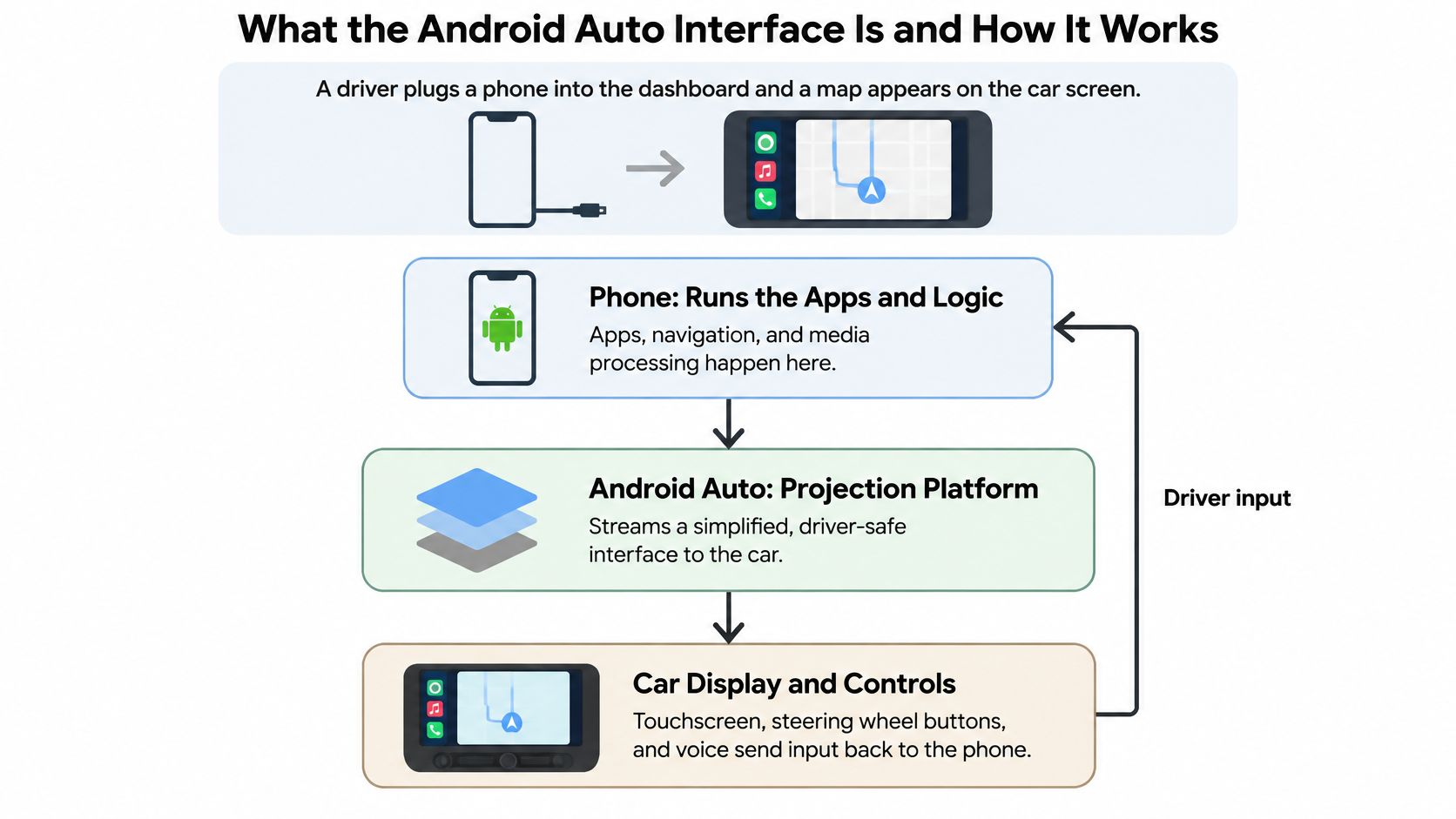
The loop is two-way. The phone paints the screen. A tap, a wheel button, or a spoken destination travels back to the phone, which redraws the map or skips the track. If the display is slow, dim, oddly cropped, or hard to reach from the seat, the phone can't repair that. Two vehicles with the same handset can feel like different products, and the head unit is the variable you should judge.
Compatibility Requirements for Phone, Car and Connection
A parked test drive can reveal more than a brochure. Android Auto depends on the phone's software, the exact vehicle or stereo head unit, the connection method, and regional availability. The head unit is the part that changes from car to car, so check how its screen responds with your own phone before buying.
| Requirement | Wired connection | Wireless connection | What to check |
|---|---|---|---|
| Phone operating system | Android 9.0 or higher | Android 11.0 or higher | Settings, then About phone, shows the Android version |
| Vehicle or stereo | Listed among Google's 500+ models | A listed head unit that also offers wireless | Match the exact model and year, not just the brand |
| Connection hardware | A data-capable USB cable | Bluetooth and Wi-Fi turned on | A charge-only cable fails with no error |
| Regional availability | One of 47 listed markets | The same country list as wired | Confirm the country before you import a vehicle |
| App version | Current Android Auto build from Google Play | The same current build | Update the app before you troubleshoot |
Google's vehicle compatibility page lists Android Auto for more than 500 vehicle and stereo models across 47 markets, including the United States, Canada, Mexico, Brazil, India, Japan, South Korea, Australia, the United Kingdom, Germany, France, and South Africa. Check the list for your country and the exact vehicle or stereo model. A familiar brand name alone does not confirm that a particular year or head unit is supported.
How to read those checks
Start with the phone's software. Wired use usually needs Android 9.0 or higher. Wireless use needs Android 11.0 or higher, and the head unit must support wireless Android Auto too. An Android 10 phone may work over USB yet fail to connect wirelessly. Before the test drive, check the Android version on the About phone screen and the Android Auto version in the Play Store. You can also find practical phone tips.
Then check the head unit, especially if you are buying a vehicle. Support can vary by model year and screen, even within one vehicle brand. Ask for the stereo or head unit model number and compare that exact identifier with Google's compatibility list. During the test drive, use your phone to check whether text and icons are easy to read, the screen responds promptly, and the controls are comfortable to reach. Those qualities come from the head unit, not from changing the phone.
For a wired setup, the cable must carry data. A charge-only cable can power the phone but cannot send projection data to the display, and the screen may never prompt you to start. Use a short data cable that you know works. On a cart or UTV, a long, thin cable can be more likely to lose its connection over rough paths.
Wireless adds Bluetooth and Wi-Fi. Bluetooth handles the initial handshake, while Wi-Fi carries the display connection. Pairing the vehicle for calls alone does not confirm that Android Auto is ready. Check that Wi-Fi is enabled and that the head unit supports wireless use. When the display remains blank, separate the checks: confirm the phone's version and settings first, then confirm the vehicle's exact model and connection support.
Navigation, Media and Voice Features Explained
The Android Auto interface groups what you can do into a few predictable jobs. Each job has a matching limit. The limit is there so a golf-cart dash and a full-size car don't invent their own button layouts.
Navigation is the main job. Google Maps and Waze draw a full-screen map. Turn prompts can also appear in an instrument cluster when that cluster is wired for them. You can keep the map panel on screen the whole time, or let it appear only when a route is active. A persistent panel is easier on short, repeated resort loops, because you see the next turn without hunting for the app icon.
Media sits beside the map, not on top of the phone's full player. Music, podcast, and audiobook apps show art and simple transport controls. Steering-wheel skip buttons, when the cart has them, change tracks without a reach to the glass. Album browsing is shallower than on the handset, which is the point. You're picking the next episode, not building a library.
Voice covers calls, messages, and new destinations. A steering-wheel voice button, or "Hey Google," starts the command. Incoming texts can be read aloud, and you dictate a short reply. The microphone has to be the car's mic, or a phone mic the head unit routes. Deny that permission and the button does nothing useful.
What stays off the screen
A casual game, a social video feed, or a banking app will not appear while you drive. Google's car design guidance explains why. Developers expose supported categories through specialized services and standardized templates, instead of drawing an arbitrary phone layout. Activities that run on the head unit are full-screen. You reach system navigation or an exit with an edge gesture. On Android 15 and newer, direct parked-app activities are limited to approved categories.
That tradeoff is deliberate. Predictable controls for maps, media, messaging, and calling mean your eyes spend less time searching for a button that moved. The cost is customization. A premium EV brand can't restyle the projected screen into a unique theme. Integration quality matters more than visual novelty: large touch targets, high-contrast status text, reliable wheel and audio controls, and a fast jump back to the vehicle's own screens.
A navigation app reaches the dash through the Android for Cars App Library, a CarAppService, and the Navigation template. The map itself is drawn on a surface the framework supplies, not as a free-form phone window.
If you want the spoken side in more detail, including how the assistant handles messages, Audio Jam's Android Auto guide walks through voice control in plain terms. If you're also weighing the other phone platform, the CarPlay and Android Auto comparison lays out where the two projection systems diverge for the same kind of short trip.
How to Set Up Android Auto Step by Step
Setup fails in small, boring ways. Each step below has a reason and the slip that wastes the most time.
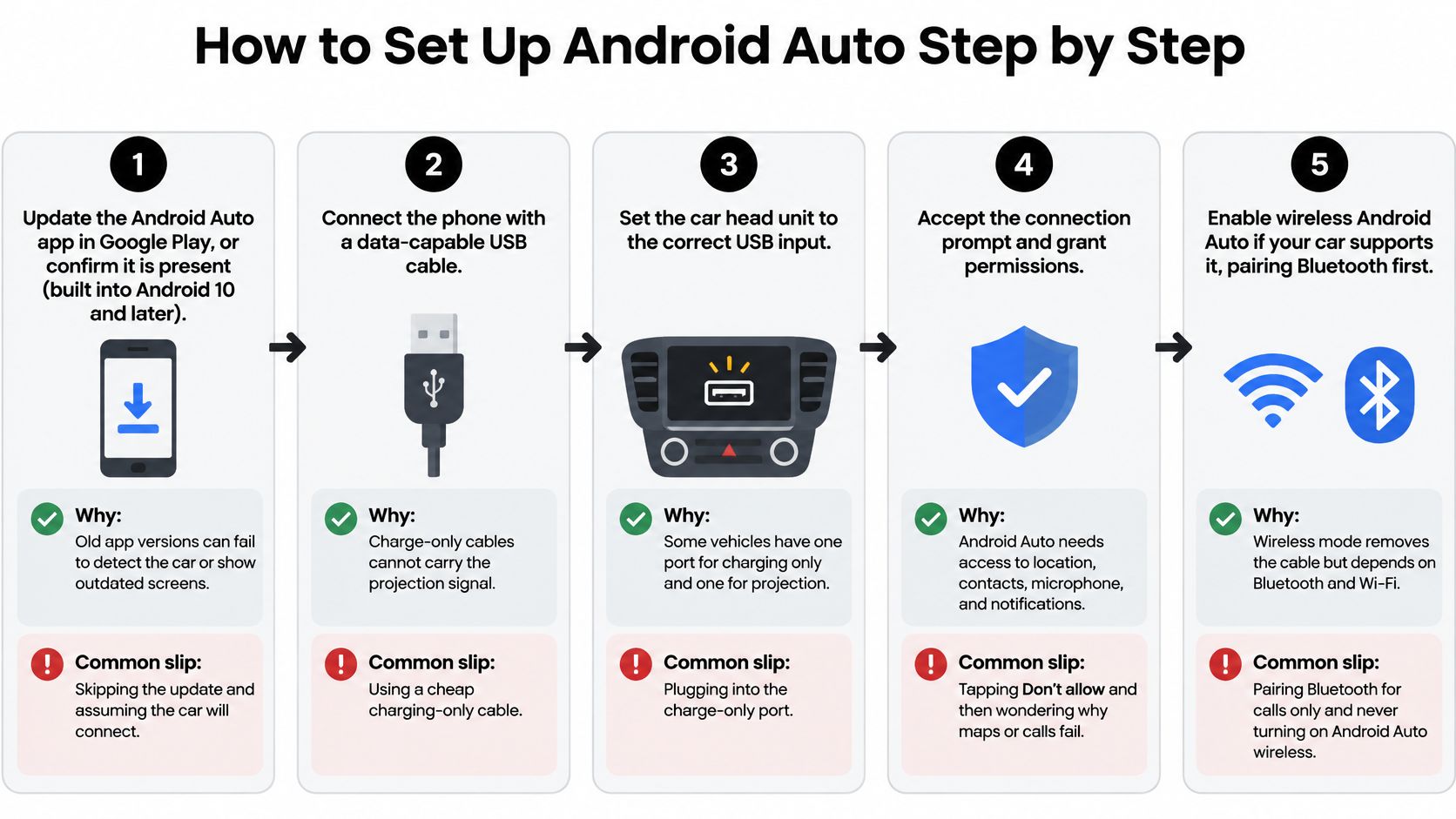
Update the Android Auto app, or confirm it's already on the phone. On Android 10 and later the app is built in, but an old build still misses pairing prompts. Open Google Play, update it, then reboot the phone once. The common slip is assuming the car will "just see" a stale app.
Start the vehicle and put the head unit on the right input. Some dashes have an Android Auto icon. Others hide it under a USB or phone source. Wireless-capable units often need that mode switched on in the stereo menu before the phone can find them. The slip is leaving the screen on FM or on a camera view and deciding the phone is broken.
Plug in a data-capable USB cable, into the vehicle's data port. The reason is simple. Projection needs a data line, not just power. The slip is a charge-only port in a console, a glove box, or a rear seat. If the phone charges and the dash stays quiet, move the plug before you change any setting.
Accept the prompt on the phone and on the car screen, then grant permissions. Notifications, contacts, location, and the microphone are the set that makes maps, caller names, and voice work. The slip is tapping Don't allow on the microphone, then wondering why "Hey Google" is silent. You can fix that later in the phone's app permissions, but it's faster to allow them on the first prompt.
For wireless, add the car under the phone's Connected devices, pair Bluetooth, then allow Wi-Fi. Bluetooth alone is only the introduction. Wi-Fi carries the picture after that. The slip is pairing the stereo for calls and never enabling wireless Android Auto, so music plays from Bluetooth and the projected screen never starts.
Set the preferences you'll live with. Choose whether the map panel stays up, allow notification access if you skipped it, and confirm which assistant answers the wheel button. Do this while parked. Changing it on a moving path is how people miss a turn in a cart path or a campus lane.
Run a three-part test. Start a short route, play one track, and place a ten-second voice call to your own voicemail. A good first connection shows the Android Auto home screen on the vehicle display within a few seconds of plugging in or finishing the wireless handshake. Map, audio, and a voice prompt should all answer. If only one of the three works, you know which permission or which cable to revisit.
If the factory screen has no projection port at all, a CarPlay and Android Auto adapter is the usual retrofit path, but only after you confirm the adapter's own wired or wireless requirement matches your phone.
A short walkthrough of the on-screen prompts helps if you'd rather watch the taps than read them.
Fixing Connection, Lag and Display Problems
Start with the cheapest cause. Most "it doesn't work" reports are a cable, a port, or a permission, not a failed stereo.
| Symptom | Likely cause | Fix |
|---|---|---|
| Phone does not connect over USB | Charge-only cable or the wrong USB port | Swap to a data-capable cable and try the car's other USB port |
| Wireless drops or never pairs | Wi-Fi interference, or Android below 11 | Forget the car on the phone, re-pair Bluetooth, confirm Android 11 or later |
| Screen lags or freezes | Low phone memory, many background apps, or old head unit firmware | Restart the phone, close background apps, then update head unit firmware |
| Maps panel missing | Map panel set to on demand | Switch the map panel to persistent in Android Auto settings |
| Layout cropped or split oddly | Head unit display mode or outdated stereo software | Check display settings and update the head unit firmware |
| Voice commands not understood | Microphone routing, or a weak head-unit mic | Test the mic in the car's own settings, then try the phone mic route |
| Phone battery drains quickly | Continuous screen and GPS use | Use a wired connection, which also charges the phone, and lower screen brightness |
Work in this order
Swap the cable and the port first. That takes minutes and costs nothing. Then restart the phone and forget the car so the handshake starts clean. Next, clear the Android Auto app cache and close heavy background apps. Only after those steps should you look at head-unit firmware or suspect bad hardware.
Phone problems versus display problems
Lag, freezes, and fast battery drain usually come from the phone. A hot handset running maps, music, and a dozen background apps will stutter on any dash. Restarting and closing those apps is the test. If the same phone is smooth in a second vehicle, stop blaming the cart.
Cropped layouts, odd split screens, and a missing map panel usually come from the head unit or its settings. Display dimensions and aspect ratio decide how the projected picture is sliced. A fix that looks perfect in a sedan often will not transfer to a portrait cart screen or a wide UTV display. Wireless drops add one more phone-side check: interference from other Wi-Fi, or a phone below the wireless version floor. Re-pair in an open area before you replace hardware.
If the picture is wrong but the phone is fast everywhere else, change the head unit's display mode before you buy a new handset.
Best Practices for Safe In-Car Use
On a golf cart, a UTV, or a resort shuttle, trips are short and repeated, and the surface is rarely as smooth as a highway. Attention habits matter more than a long feature list.
Set the destination and the playlist before the vehicle moves. A gated-community loop or a cart path doesn't give you a long straight where you can browse. Pick the route and the album in the parking spot. After that, the screen should confirm, not invite more tapping.
Use voice for the changes you can't avoid. A new stop, a reply, or a call belongs on the voice button. Keep glances short. If a command fails twice, pull over. Retrying a phrase while you roll through a crossing is the habit that causes the miss.
Skip tracks and change volume from the wheel or the knob, not from a touch slider. Android's car platform documentation describes the setup as phone projection. The phone runs the app logic, and the vehicle display renders a driver-oriented interface. That architecture adapts one app across many screen shapes, but it does not take over every head-unit job. Volume, power, and camera views stay on the vehicle's own controls, and the physical knob is faster than hunting a slider.
Mount the phone where it can't block your view and can't shake loose. Vibration on a cart path or a campus road unseats a loose cradle. A phone in your lap is worse. It becomes a second screen you shouldn't be watching.
Prefer large, glove-friendly targets when the head unit offers them. Cold mornings and work gloves are normal on UTVs. A tiny corner icon fails the first time you wear them.
Keep the phone charged and the software current between short hops. A dead battery or a half-installed update ends the session at the worst moment, which on a resort loop is the moment a guest asks for directions. Wired use tops the battery up while you drive.
A fixed route gains the most from a layout you don't rearrange. Leave the map where you left it yesterday, so the first glance after start-up is the same every time.
Confirm the Head Unit Before You Buy
A feature line on a window sticker is not a test drive. McKinsey & Company found that in 2024, 30% of global electric-vehicle buyers said Apple CarPlay or Android Auto was a requirement for their next vehicle. Wanting the feature and getting a usable screen are different purchases.
Run this check in the driver's seat, with your own phone, before you sign.
- Screen size and distance: Can you read a street name from your normal posture, without leaning in?
- Shape: Note whether the display is tall or wide, and whether a split layout crops the map.
- Connection: Confirm wired, wireless, or both, on that exact model year.
- Touch: Try it with gloves on, and again in direct sun. Glare on a glossy panel hides the next turn.
- Startup: Time how long the home screen appears after you switch the vehicle on. Repeated short trips punish a slow boot.
- Idle state: Ask what the display shows when navigation isn't running. A blank or buried media screen is a daily annoyance.
- Native controls: Volume, power, and camera views should remain hardware controls, not only on-screen buttons.
An advertised Android Auto feature doesn't guarantee a consistent interface. The vehicle's display integration can matter as much as the phone.
For carts and low-speed vehicles, also look at how the golf cart dashboard is placed relative to the wheel and the sun. Solana EV lists Android Auto on models such as the G, so ask the dealer to pair your phone on that exact unit and read the head-unit spec sheet for wired versus wireless. If the demo phone is theirs, the test didn't answer your question.
Solana EV builds street-legal golf carts and electric UTVs with touchscreen infotainment for maps, music, and calls on neighborhood, course, and resort routes. If you're choosing a head unit, browse the lineup and ask a dealer to pair your own phone on the exact model before you buy. Start at Solana EV.