
You're backing a street-legal golf cart into a narrow space outside a resort office. Apple Maps is guiding you on the center screen, music is playing, and then you select reverse. The navigation view disappears, the rear camera image appears, and you suddenly need to know what made that switch happen, whether your iPhone controls it, and what to check if the screen stays black.
The answer is simpler than it first appears. Apple CarPlay and the backup camera are separate sources that share the vehicle's head unit display. CarPlay brings iPhone navigation, calls, messages, and media to the screen. The vehicle's wiring and head unit handle the rear camera. Understanding that difference helps you choose the right equipment for a low-speed EV, troubleshoot a retrofit, and avoid assuming that a CarPlay setting can fix a wiring problem.
Table of Contents
- Introduction to Apple CarPlay With Backup Camera Integration
- How Apple CarPlay and Backup Cameras Work Together
- Compatibility and What Your Vehicle Needs
- Factory Integration Versus Aftermarket Options
- Benefits for Everyday Driving and Low Speed Maneuvering
- Setting Up and Using Apple CarPlay With Backup Camera
- Troubleshooting Common Issues and Final Takeaways
Introduction to Apple CarPlay With Backup Camera Integration
Apple introduced CarPlay in 2014, helping establish the modern era of smartphone integration in vehicles. Backup cameras became an equally important part of the dashboard experience after the U.S. federal rear-visibility rule took full effect on May 1, 2018, covering new vehicles under 10,000 pounds sold in the United States, as described in this overview of the backup camera law and aftermarket industry.
Those developments created a familiar driving pattern. You use one display for directions, calls, and music while moving forward, then the head unit changes to the camera view when you select reverse. In a conventional passenger vehicle, the factory manufacturer often manages that relationship behind the scenes. In a street-legal golf cart, UTV, or low-speed vehicle, the result depends more visibly on the hardware, wiring, and installation choices.
The low-speed vehicle version of the problem
A golf cart may move at a modest pace, but the driver still has to manage pedestrians, posts, curbs, landscaping, other carts, and tight parking areas. An open-air vehicle can also create difficult viewing conditions. Bright sunlight may wash out a screen, vibration may affect a loose connector, and a rear camera mounted in an exposed location needs suitable protection from weather and debris.
That's why buyers searching for Apple CarPlay with backup camera integration shouldn't focus only on whether the screen says “CarPlay.” They also need to ask whether the head unit has a compatible camera input, whether it receives a reverse signal, and whether the camera receives stable power.
What this guide will help you decide
You'll learn how the two systems share a screen, what a compatible vehicle needs, and how factory equipment compares with aftermarket and portable options. You'll also see how to test the system in real driving conditions, which symptoms point to wiring or format problems, and why a dependable camera image matters more than the phone brand itself.
For a Solana EV-style vehicle, this knowledge is practical. A modern touchscreen can serve as a navigation and media interface during forward travel, then become a rear-visibility monitor during a low-speed maneuver. The goal isn't to make the iPhone control the vehicle. The goal is to make sure the head unit can switch between the right sources at the right time.
How Apple CarPlay and Backup Cameras Work Together
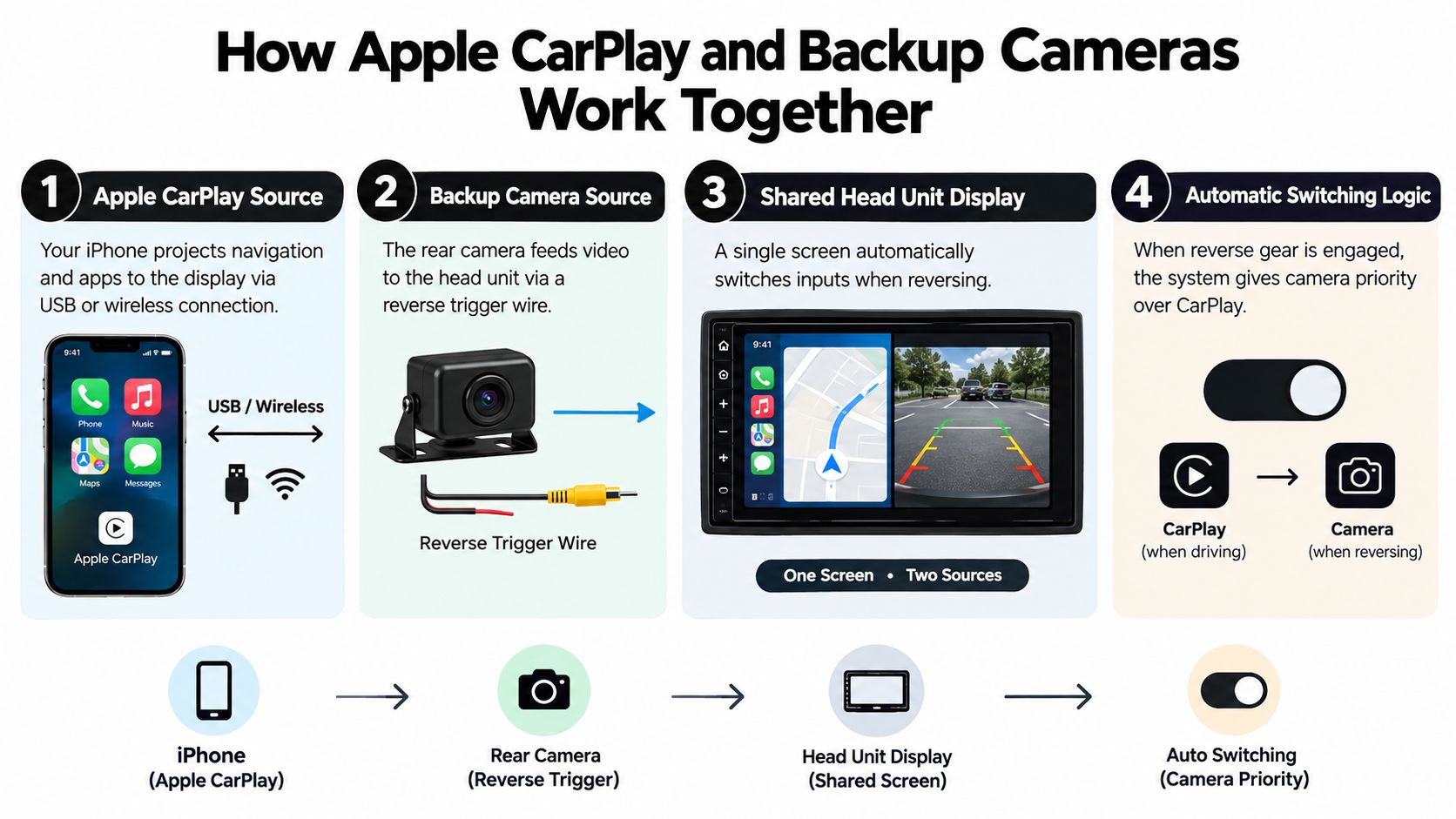
Think of the head unit as a television with multiple inputs. One input receives the iPhone's CarPlay interface. Another receives the camera's video signal. The television doesn't create the video from either device. It selects which source to show.
The same principle applies inside a vehicle:
- CarPlay source: The iPhone sends navigation, calls, messages, and supported media interfaces to the head unit through a wired or wireless connection.
- Backup camera source: The rear camera sends a video signal to the head unit's dedicated camera input.
- Reverse trigger: The vehicle's reverse-light circuit tells the head unit that reverse gear has been selected.
- Display priority: The head unit temporarily replaces CarPlay with the camera feed.
What CarPlay does and doesn't do
CarPlay displays approved iPhone functions. It doesn't power the rear camera, interpret the reverse-light signal, or repair a missing video connection. The head unit performs those jobs.
When you select reverse, the reverse-light circuit activates the trigger wire. The head unit detects that signal and switches from the CarPlay video source to the camera input. When reverse is disengaged, the head unit can return to the previous interface, assuming its settings and wiring support that behavior. This backup camera wiring explained guide can help clarify how the camera, power connection, and display relate to one another.
The iPhone may remain connected throughout the maneuver, but it isn't the device deciding that the vehicle has shifted into reverse. That distinction explains why changing CarPlay permissions usually won't solve a camera that never appears.
Practical rule: If CarPlay works but the camera doesn't, start with the camera input, power connection, video format, and reverse trigger before troubleshooting the iPhone.
A compatible head unit must understand the camera's video signal and know when to prioritize it. A camera can be fully functional while the screen remains blank if the signal reaches the wrong port, the trigger wire isn't connected, or the head unit expects a different format.
Compatibility and What Your Vehicle Needs
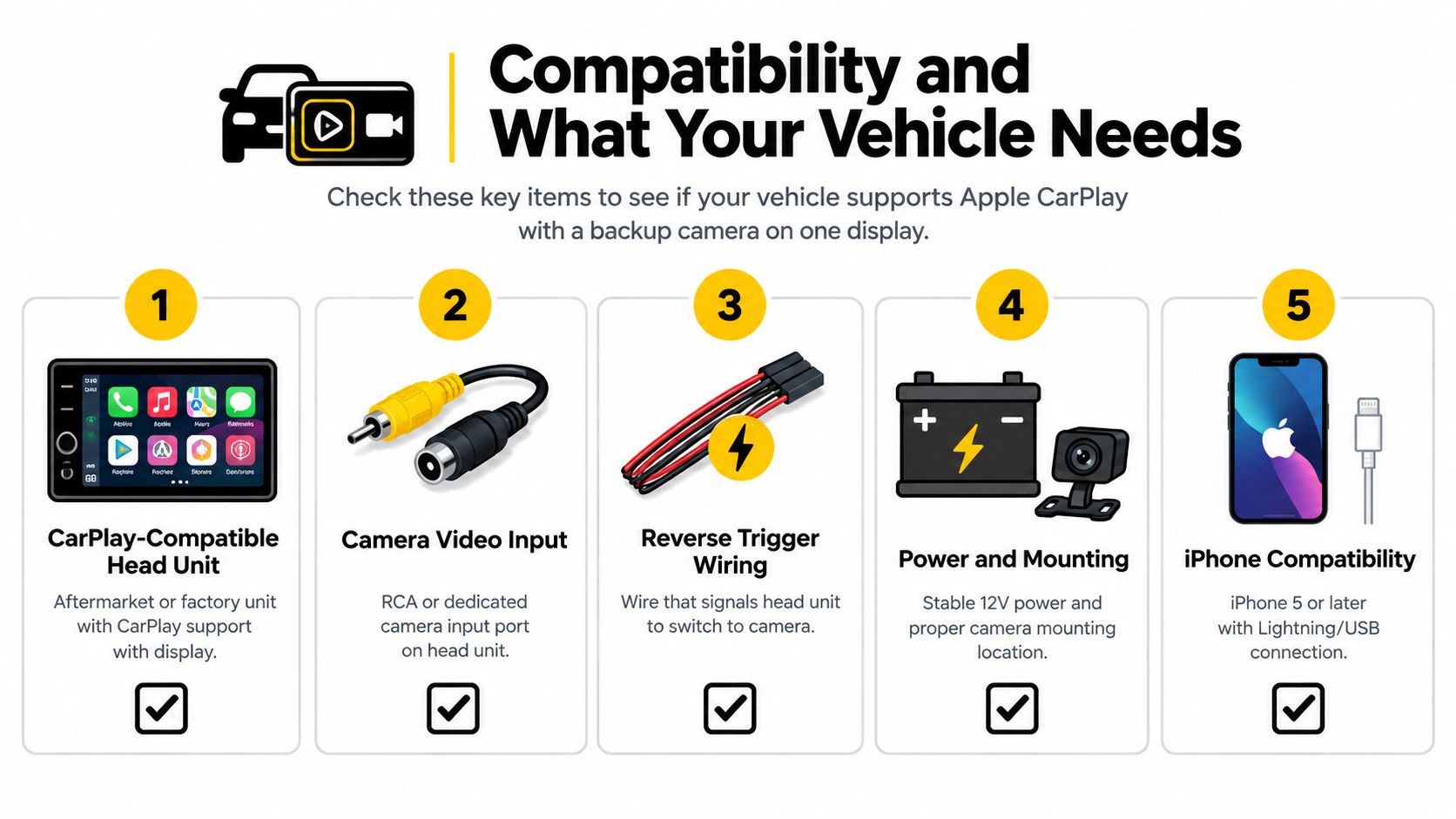
A successful Apple CarPlay with backup camera installation depends on several parts working as one system. The phone is only one part of that chain. For a street-legal golf cart, UTV, or LSV, the head unit usually determines whether the integration is practical.
The five compatibility checks
CarPlay-capable head unit. The display must support Apple CarPlay, either from the factory or through an aftermarket replacement. A screen that only plays radio or Bluetooth audio won't become a CarPlay display through the addition of a camera.
Dedicated camera input. Look for a backup-camera port, often a dedicated video connector or an RCA-style input. The presence of a touchscreen doesn't guarantee that it accepts a rear-camera signal.
Reverse trigger wiring. The head unit needs a signal that tells it when reverse has been selected. That signal commonly comes from the reverse-light circuit. Without it, the camera may require manual selection, or it may not appear at all.
Stable power and physical mounting. The camera needs an appropriate power connection, often taken from the reverse lamp so it activates during reversing. The mounting point should provide a useful rear angle and protect the camera from avoidable impact, moisture, and vibration.
Compatible iPhone connection. CarPlay still needs a compatible iPhone connection through USB or wireless pairing, depending on the head unit. This affects the navigation and media side of the system, not the camera's basic reverse-video operation.
Factory vehicles and low-speed platforms
Factory integration usually includes a matched camera, head unit, software configuration, and vehicle wiring harness. A low-speed platform may instead combine a modern display with a separately installed camera. That arrangement can work well, but the installer has to confirm each connection rather than assuming that CarPlay creates compatibility automatically.
For buyers comparing smartphone interfaces, this CarPlay versus Android Auto comparison can help separate phone-platform features from the vehicle hardware that displays them. On models such as the Solana XA 4P, XA 6P, F, and G, the relevant buying question remains the same: how does the supplied display accept and switch the camera feed?
Ask the seller or installer to identify the camera input, trigger connection, camera signal format, and power source in writing. If those answers are unclear, the vehicle may still be upgradeable, but the project needs a compatibility review before parts are ordered.
Factory Integration Versus Aftermarket Options
Factory integration and aftermarket installation can both deliver CarPlay alongside a rear camera, but they solve different ownership problems. A factory system is designed as one package. An aftermarket system gives an older vehicle or recreational platform a path to modern connectivity, but the result depends on component matching and installation quality.
A portable screen can be attractive when you don't want to replace the existing dashboard. It may mount to the dash and provide CarPlay separately, while a camera feed appears through its own supported input. That flexibility can reduce dashboard modification, but it may also add exposed cables, a separate power arrangement, and more mounting concerns in an open-air vehicle.
Comparison at a glance
| Feature | Factory Integrated System | Aftermarket or Portable Screen |
|---|---|---|
| Display switching | Usually configured by the vehicle manufacturer and head unit | Depends on trigger wiring and screen settings |
| Camera compatibility | Matched to the supplied electronics | Must match the camera input and video format |
| Installation appearance | Typically cleaner and more integrated | Can range from neatly fitted to visibly add-on |
| Vehicle suitability | Strong fit for the original platform | Useful for older carts, UTVs, and LSVs |
| Repair path | May require manufacturer-specific service | Individual camera, cable, or head unit can often be checked separately |
| Mounting demands | Designed around the dashboard | Requires careful placement for glare, vibration, and weather exposure |
Where aftermarket systems make sense
Many retrofit packages use AHD or HD 1080P rear cameras, with cable runs of roughly 19.7 feet to 26 feet, as outlined in this camera and head unit installation manual. The run may be long enough for a larger vehicle, but length alone doesn't guarantee a usable image. The cable still needs a protected route, secure connections, and a head unit that accepts the selected signal format.
A replacement head unit can be a strong choice when the vehicle already has a suitable dashboard opening and enough room for secure mounting. A portable screen may suit an owner who values reversibility, but the display must remain visible in sunlight and stable over uneven surfaces.
For dashboard layout ideas, review the golf cart dashboard options from Solana EV. The right path depends on whether you're equipping one personal vehicle, standardizing a resort fleet, or replacing an aging screen without disturbing the rest of the vehicle.
Benefits for Everyday Driving and Low Speed Maneuvering
The practical value of CarPlay and a backup camera appears during ordinary moments. You follow directions through a gated community, glance at the next turn, then reverse beside a curb. The display changes sources without requiring you to search through a separate camera menu.
That single-screen arrangement keeps the driver's attention in one dashboard area. CarPlay can support navigation, calls, messages, and media while the vehicle travels forward. The rear camera then provides a live view when the driver needs to judge distance behind the vehicle.
Real situations where the pairing helps
A resort attendant may reverse near a loading area where guests and carts move through the same space. A rear image can reveal a person or object that isn't obvious from the seat alone, but the driver still needs to check mirrors and surroundings directly.
A homeowner in a gated community may use navigation to reach a clubhouse, then back into a compact parking space bordered by landscaping. A camera doesn't replace observation, but it can make the final maneuver easier to judge.
An outdoor recreation user may stop on uneven ground and need to reverse around a trailer or trail-side obstruction. In that setting, mounting stability, image clarity, and reliable activation matter more than the name of the smartphone interface.
Safety depends on usable performance
The Insurance Institute for Highway Safety has reported a 17% reduction in backing crashes for all drivers associated with backup cameras, as summarized in this discussion of Apple CarPlay systems with backup cameras. That finding concerns backup cameras generally, not CarPlay specifically. The benefit depends on whether the camera activates consistently and provides an image the driver can interpret.
A camera helps only when the driver can see it, understand it, and trust that it will appear when reverse is selected.
Open-air vehicles introduce extra variables. Sun glare can reduce contrast, vibration can loosen a connector, and dirt or moisture can obscure the lens. Treat the camera as a visibility aid within a broader check that includes mirrors, direct observation, and a clear path.
Setting Up and Using Apple CarPlay With Backup Camera
Begin with the phone side, but don't stop there. Connect the iPhone to the head unit through its supported USB connection or pair it wirelessly, then confirm that CarPlay opens and that navigation, calls, and audio behave normally.
Confirm the camera path separately
With the vehicle stationary and the area behind it clear, select reverse and watch for the display to change. A working result requires more than a powered camera. The head unit must receive the reverse trigger and the video signal through the correct input.
If the screen stays on CarPlay, inspect the trigger connection and the camera settings. If the screen changes but shows a black image, check camera power, the video connector, and the format selected in the head unit. A touchscreen radio with backup camera support can provide a useful reference when comparing the features of a replacement display.
Make the installation fit the vehicle
Route the camera cable away from moving suspension parts, sharp edges, hot surfaces, and areas likely to pinch the wire. On a golf cart or LSV, use secure attachment points so the cable doesn't move with vibration. Keep connectors protected and make sure the camera mount holds its viewing angle after repeated use.
Check the head unit's camera menu for image orientation, guideline options, and brightness controls. Guidelines can help estimate the vehicle's path, but they're only useful when the camera is mounted straight and the settings match the actual vehicle.
Daily operation
During forward travel, CarPlay supplies the familiar navigation and media interface. When reverse is selected, the head unit should give priority to the rear camera, then return to the prior display after the maneuver.
Test that handoff more than once before relying on it in a crowded setting. Try it in daylight, at night, and in the conditions where the vehicle normally operates. If the system works only after a manual menu selection, treat that as an installation or configuration issue rather than normal CarPlay behavior.
Troubleshooting Common Issues and Final Takeaways
A failed camera view usually has a physical or head-unit cause. CarPlay can still work perfectly while the rear-camera circuit has no power, the trigger wire is disconnected, or the video plug is connected to an incompatible input.
Match the symptom to the likely cause
- No change when reverse is selected: Check the reverse trigger connection and verify that the head unit is configured to respond to that input.
- The screen switches but stays black: Inspect camera power, the video connector, and signal-format compatibility.
- The image appears after a delay: Look for a loose connection, unstable power, or a camera that takes time to initialize.
- CarPlay doesn't return: Review the head unit's reverse-camera settings and confirm that the reverse signal drops when the vehicle leaves reverse.
- The image looks washed out: Reposition the camera, clean the lens, and check screen brightness in direct sunlight.
- The picture cuts out over bumps: Inspect cable routing, mounting, and connectors for movement caused by vibration.
A manual for one CarPlay and camera system explains the core point clearly: the reverse-light circuit triggers the camera feed, and the head unit switches video sources. That means the most useful diagnosis follows the signal path from reverse selection to trigger wire, camera power, video cable, input format, and display setting.
Before buying: Verify the head unit input, camera format, reverse trigger, power plan, mounting location, and return-to-CarPlay behavior.
Factory equipment makes sense when you want matched components and a clean installation. An aftermarket or portable solution may make more sense for an older golf cart, UTV, or LSV, provided the installer confirms the connections and tests the system in real conditions. For any vehicle, the camera should supplement mirrors and direct observation, not replace them.
Solana EV offers street-legal golf carts and electric UTVs with technology such as Apple CarPlay and Android Auto, including models built around modern touchscreen dashboards. Visit Solana EV to review available vehicles, locate a dealer, and see which platform fits your neighborhood, resort, campus, or recreational use.